Disclaimer: Our templates include a privacy policy and terms & conditions. We are NOT legal professionals. The content in our templates and training material is NOT to be taken as legal advice. We recommend that you consult with an attorney.

Account Setup & Configuration
complete
Step 1
Select Starter Template
(this is something you only do once)
Step 2
Import Personalizations
(this is something you only do once)
Step 3
Business Info
Name, tagline, professional title, business name info, and contact info.
complete
Step 4
Customize Logo & Colors
Square profile picture, logo files, brand colors, and website background image.
Step 5
Add Your Links
Add your social media links, affiliate link & distributor enrollment link
Step 6
Customize Website & Lead Magnet
Customize your website headline, text, mini bio, lead magnet & CTAs (calls to action)
Step 7
Submit for A2P Approval
to Send SMS Messages
Step 8
The "Switch"
Turn Features ON & OFF
HOW TO USE TEMPLATES
Follow the step-by-step guide below to properly use templates.
Once your account setup (above) is complete, we recommend starting with the templates and making edits as you go!
Important: Do NOT edit any templates directly. Always duplicate the template, drag it to the "Active" folder, then edit it.
Step-by-step guide for templates
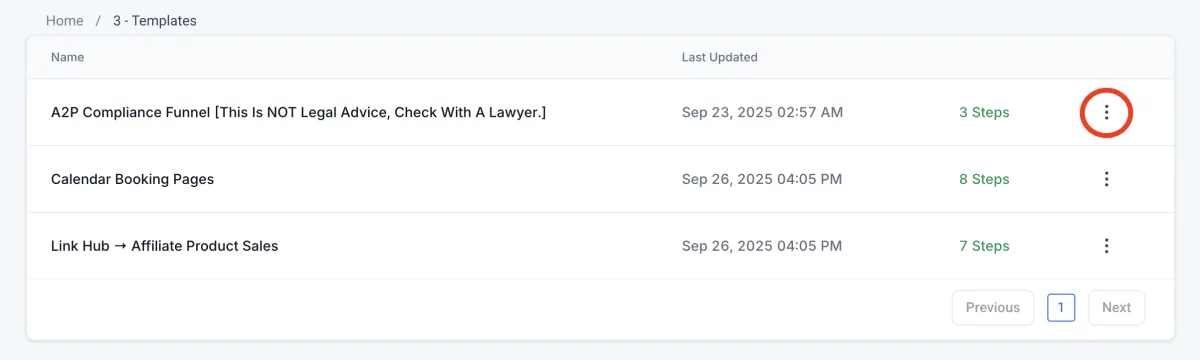
1. Click the 3 dots (⋮) on the right of template item.
2. Duplicate the item.
For a funnel or website template:
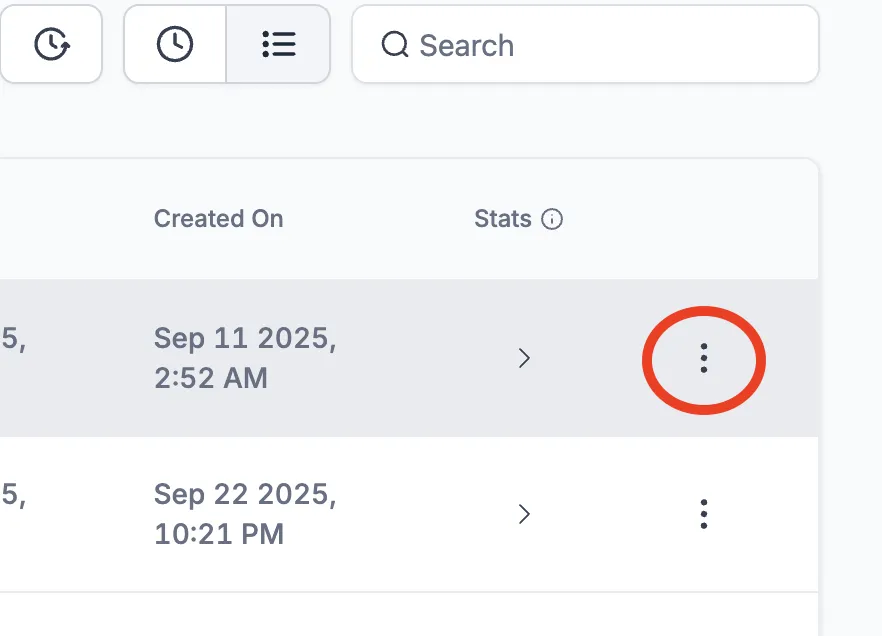
a. Click the 3 dots (⋮)
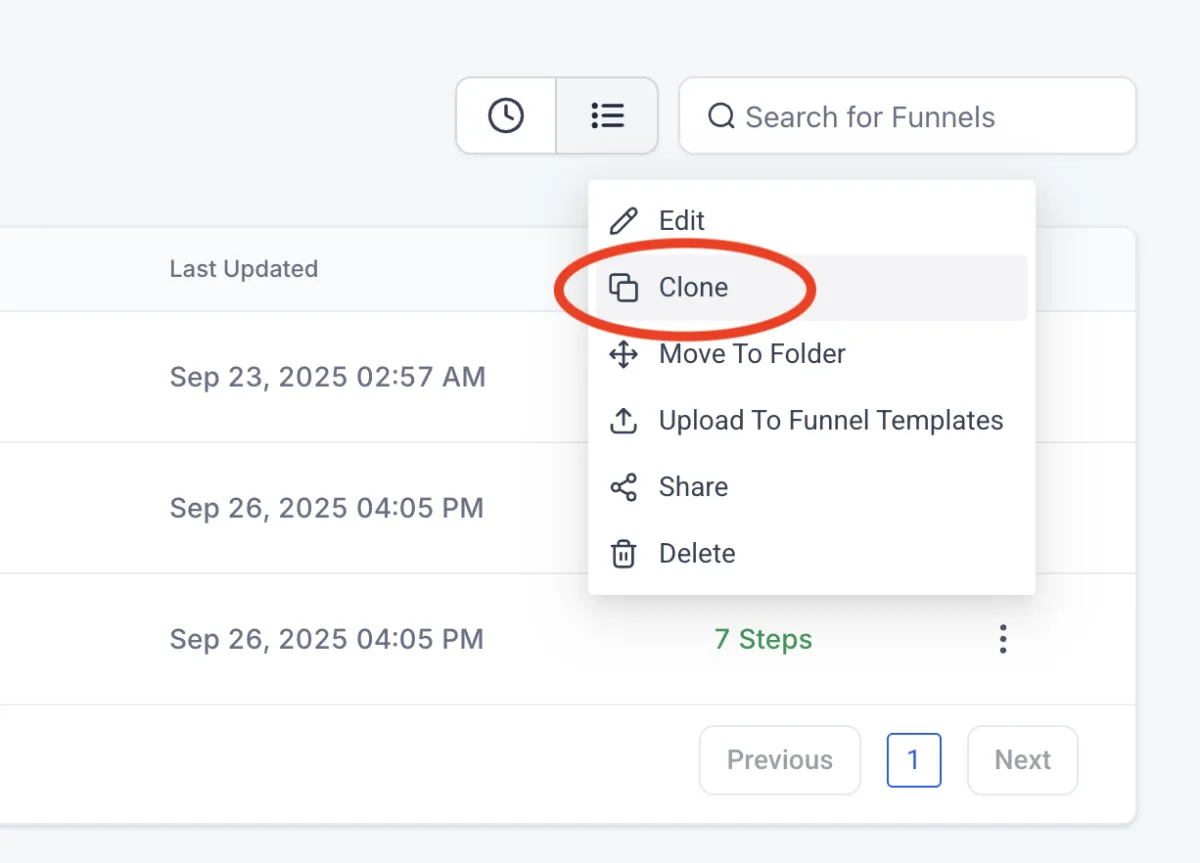
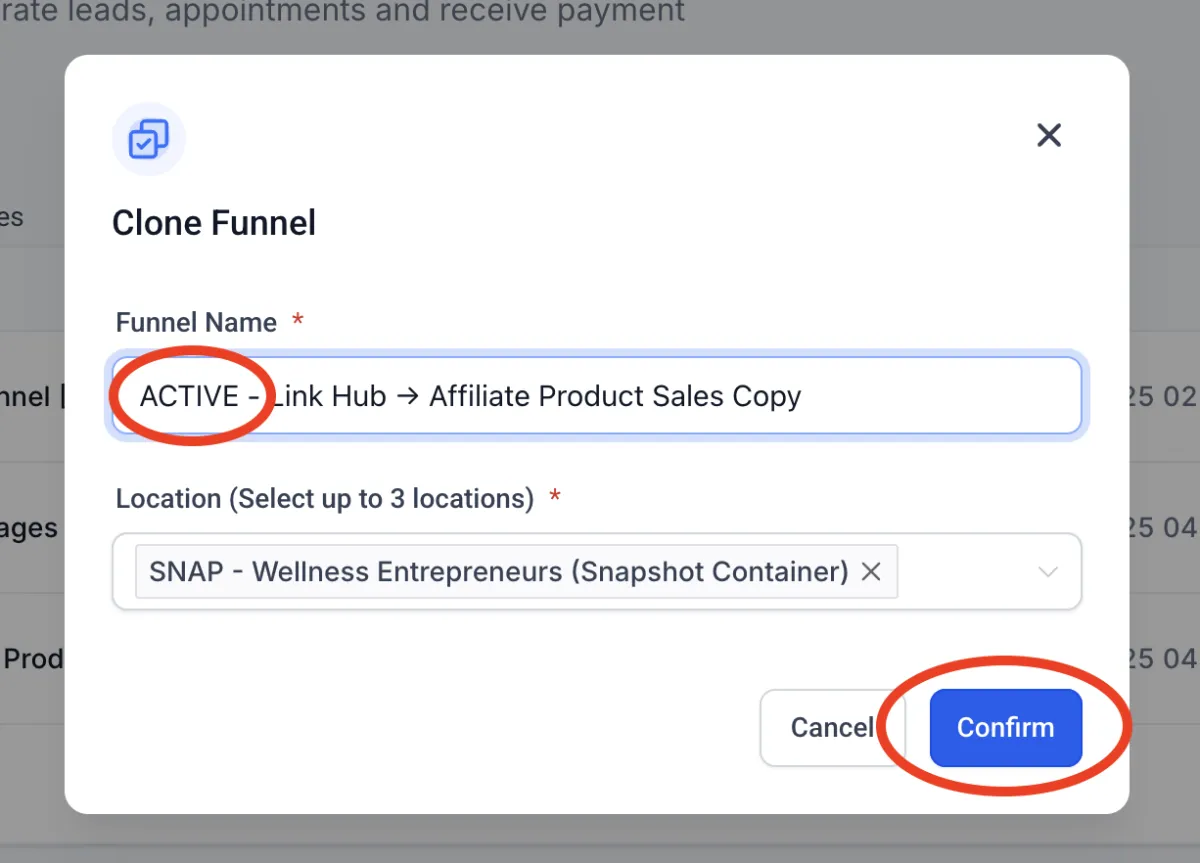
b. Click "Clone"
c. Rename to "ACTIVE"
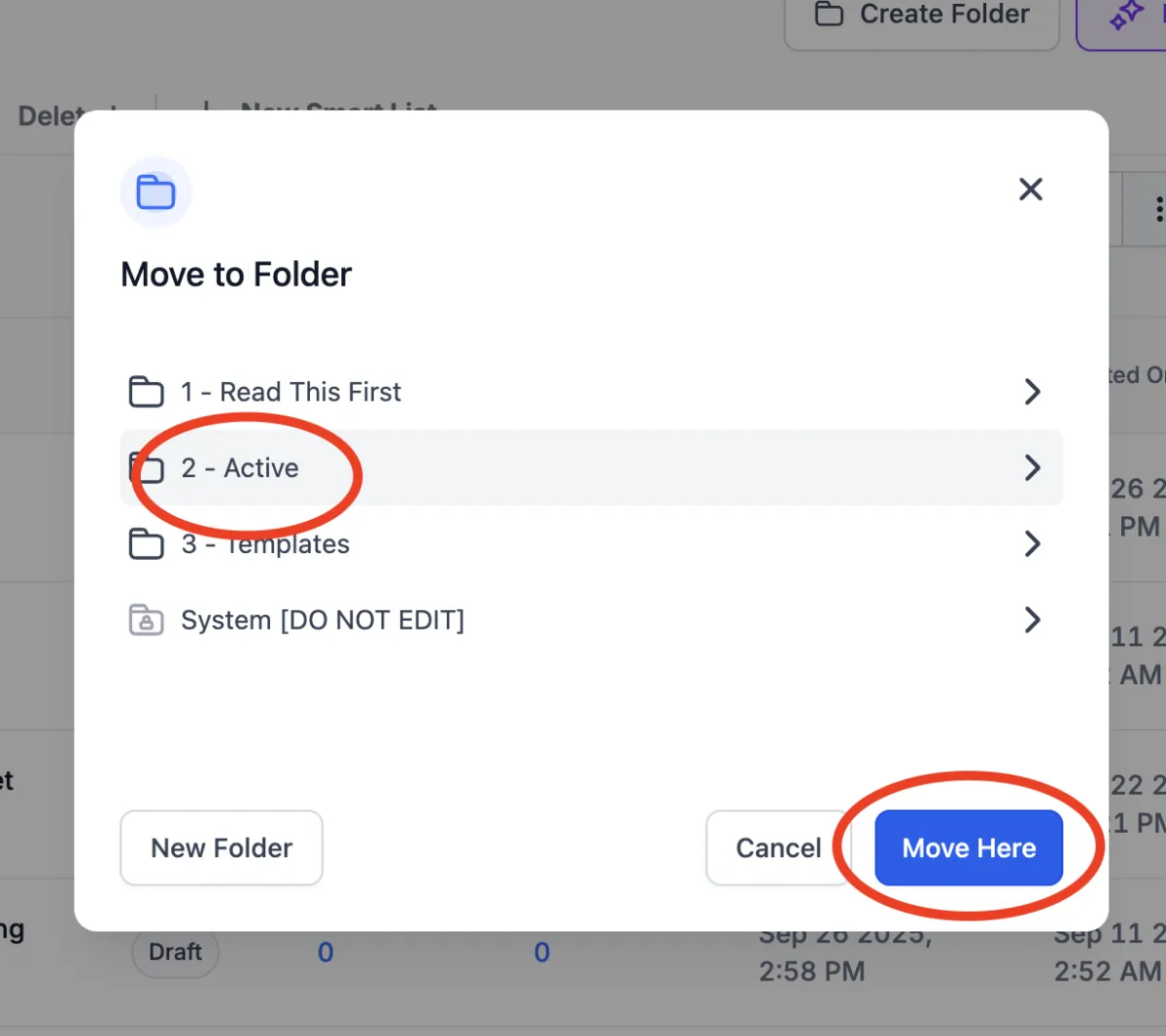
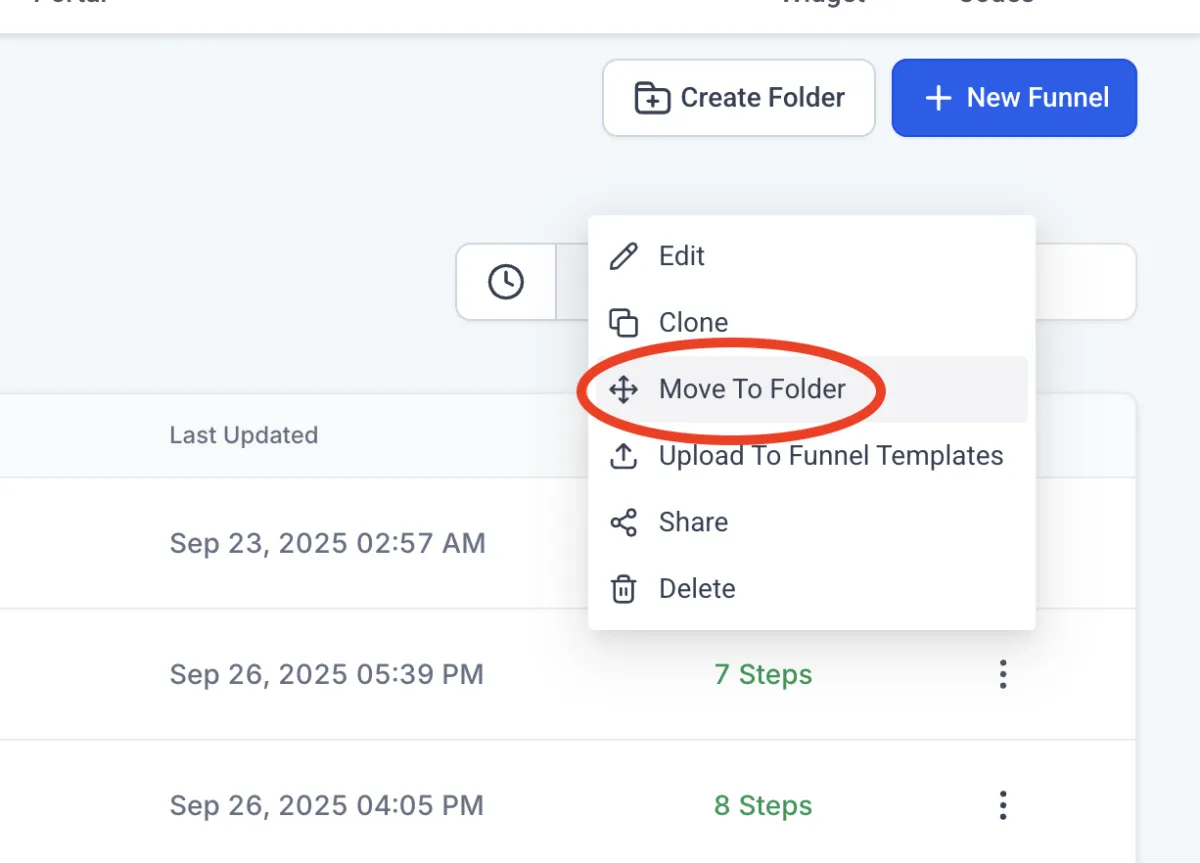
d. Click "Move To Folder"
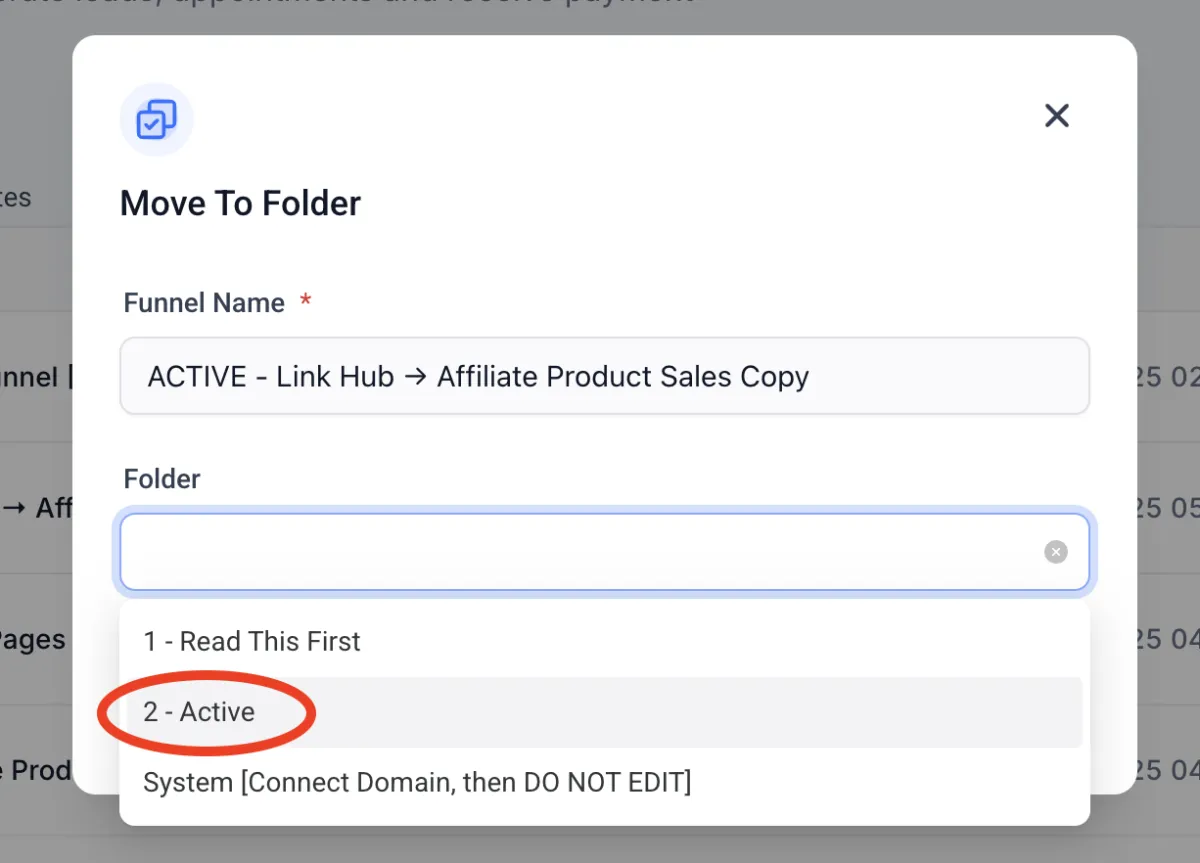
e. Move to "Active" folder
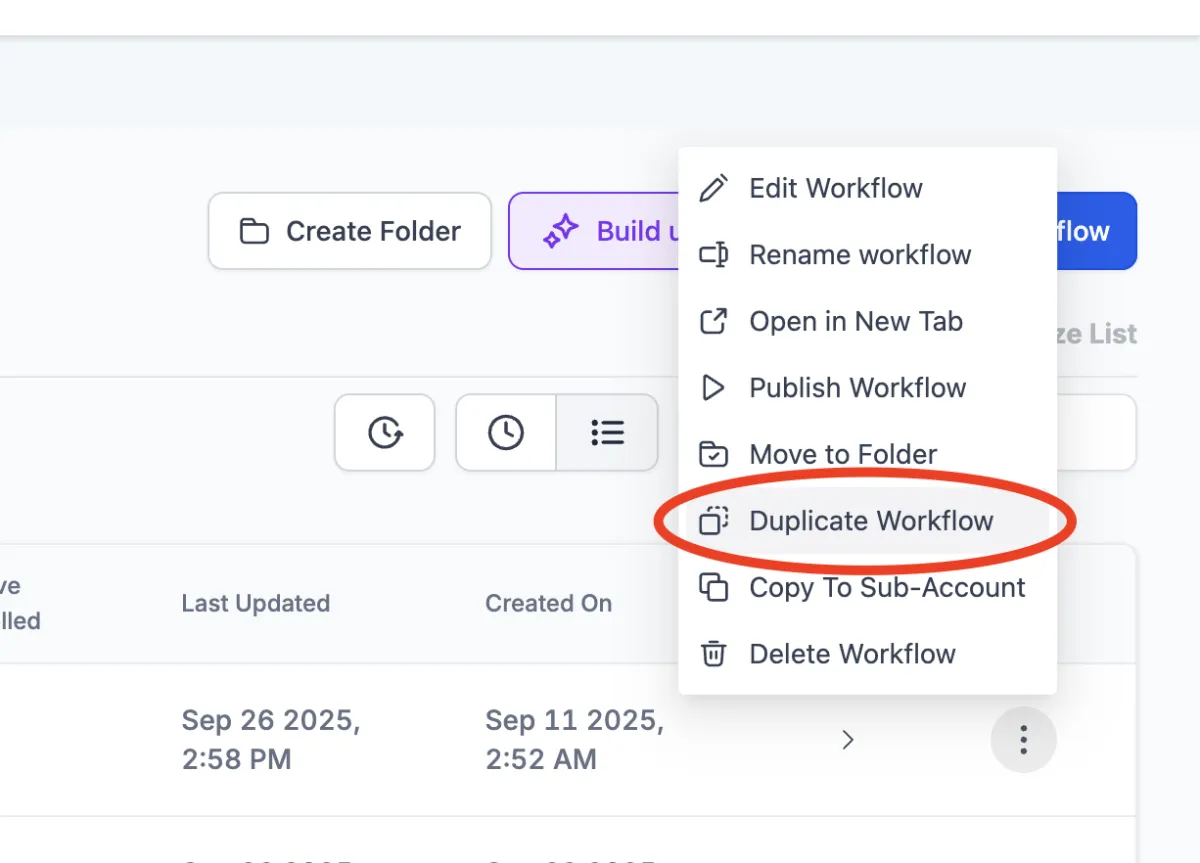
For a workflow template:
a. Click the 3 dots (⋮)
a. Click "Clone"
c. Rename to "ACTIVE"
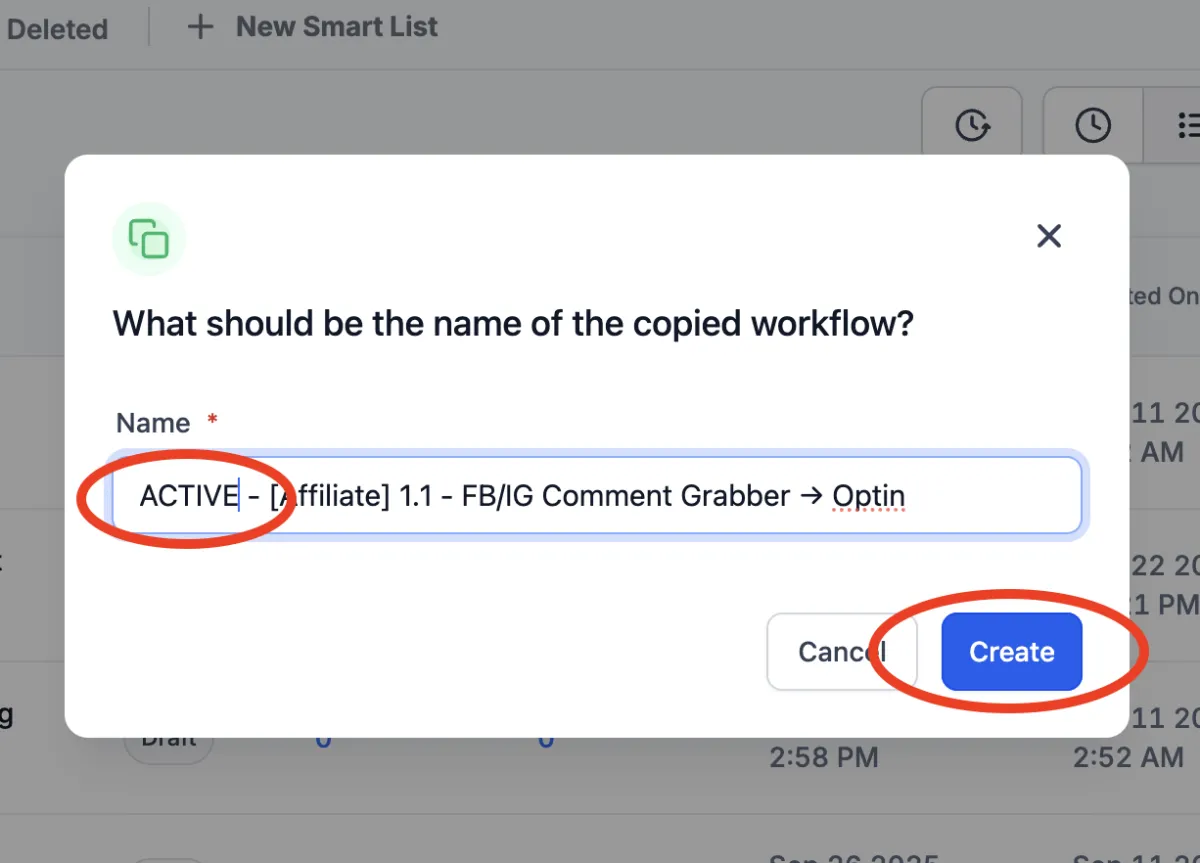
d. Click "Move To Folder"
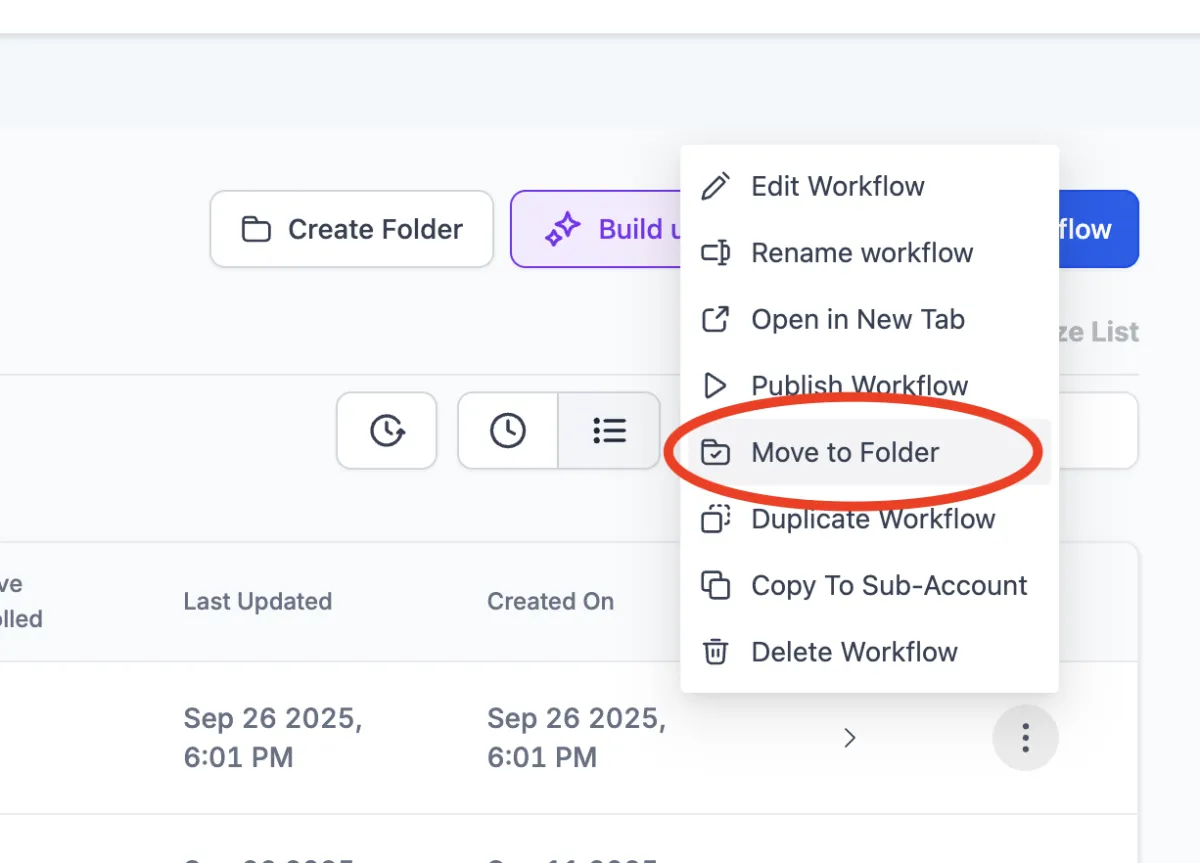
e. Click the "back" button
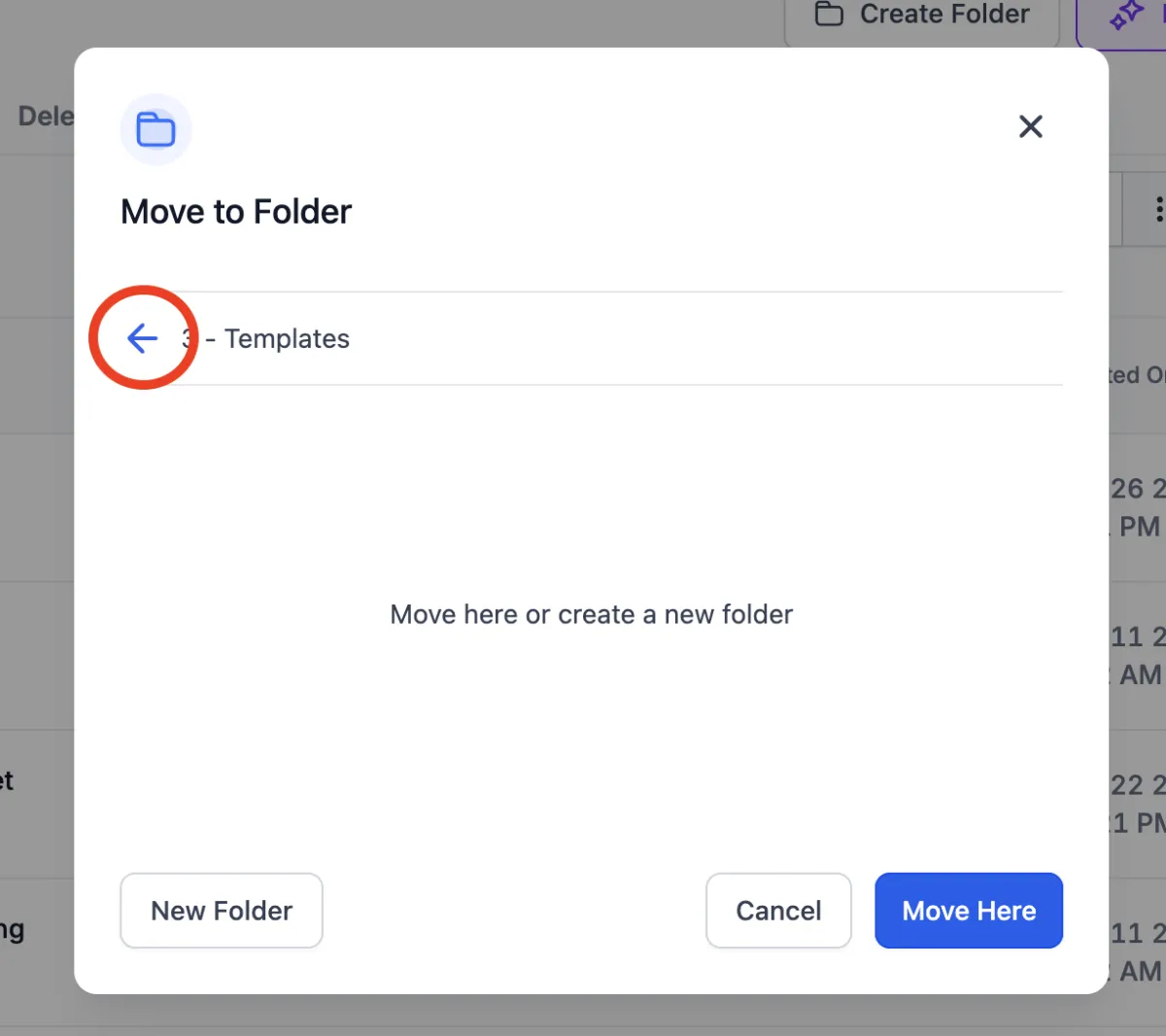
f. Move to "Active" folder